 Cart
Cart
 SK
SK






4.3 Inserting barcodes and QR codes
There is a “Barcodes, QR code” field in the Other information tab. Barcodes are divided into group. Detailed description of the barcodes can be found in the attached document (just click on [i]).
In order to insert the barcode into the template please provide following steps:
- Choose your barcode type.
- Click on [Insert Barcode into template] button.
- Barcode is inserted into template.
-
Replace “YOURCODE” with static number/string (4a) for making the barcode or you can use the variables from the actual template (4b).
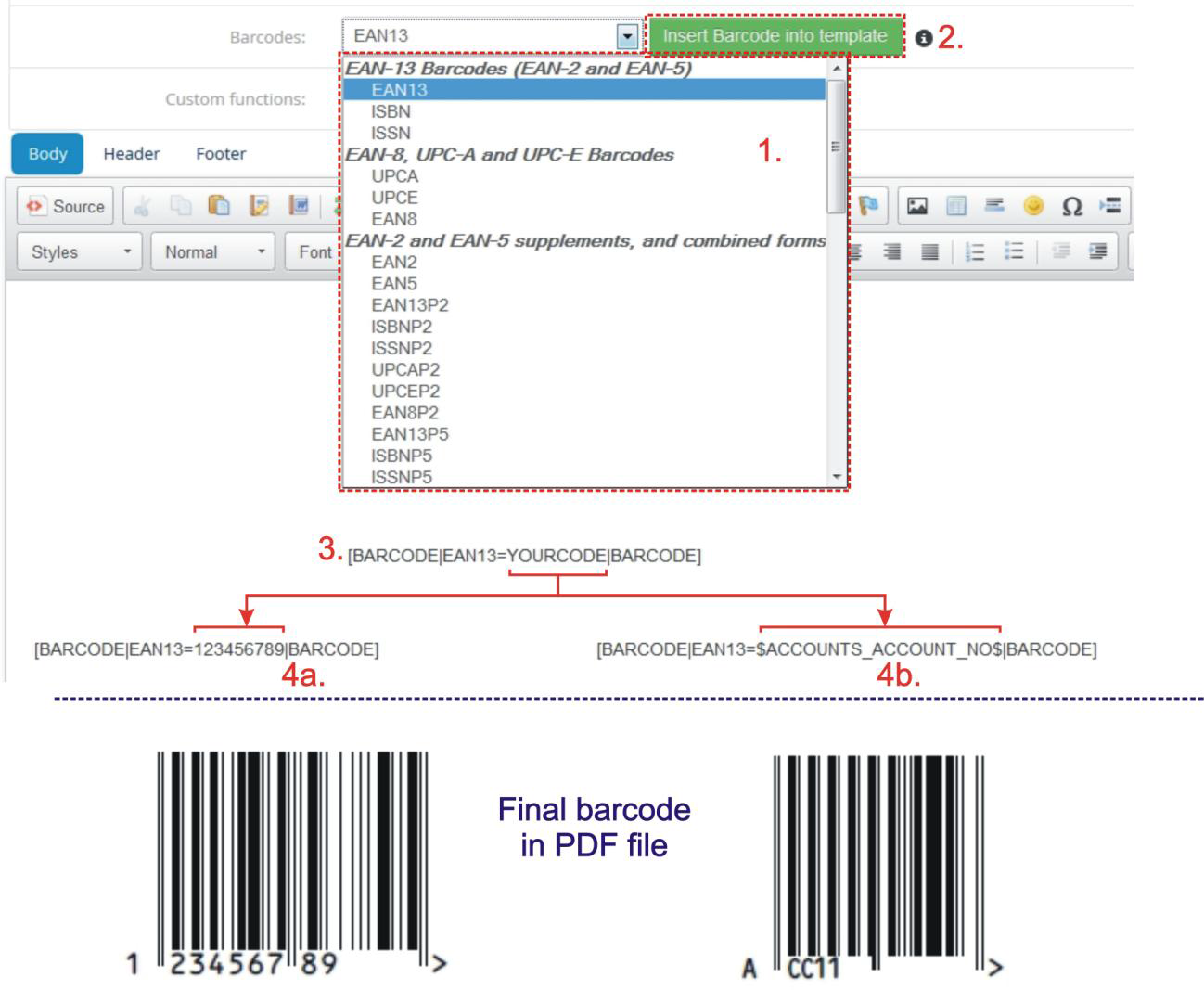
Picture 4.4 Barcode selection
How to insert QR code shows next picture:
- In Other information tab please select QR field from “Barcodes, QR code” and click on [Insert Barcode into template] button.
-
In inserted part [BARCODE|QR=YOURCODE|BARCODE] replace “YOURCODE” with your QR code value.
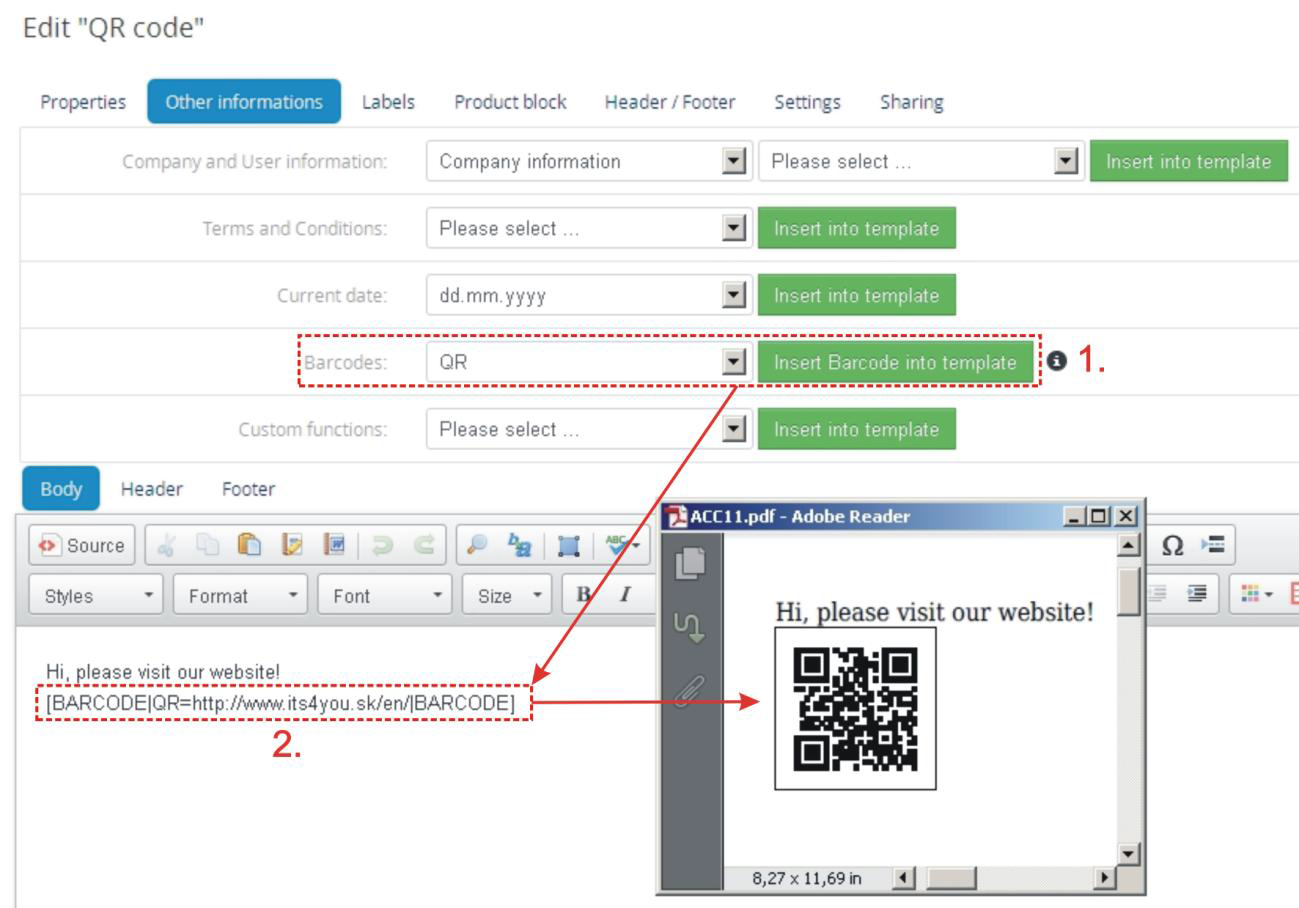
Picture 4.5 How to insert QR code
Formatting barcodes and QR codes
The inserted barcodes or QR codes can be formatted using (see example formatting in the Picture 4.6):
- additional attributes – add one or more supported attributes into barcode/QR syntax like [BARCODE|CODE=YOURCODE|ATT1=value1|…|ATTN=valueN|BARCODE]
Example:[BARCODE|EAN13=789|SIZE=1.5|HEIGHT=0.5|BARCODE] - Cascading Style Sheets (CSS) – define CSS style within PDF template and put it into barcode/QR syntax like: [BARCODE|CODE=YOURCODE|CLASS=name_of_style|BARCODE]
Example:<style type="text/css"> .barcodestyle{ padding: 5px; margin: 3px; color: red; background-color:blue; vertical-align: middle; }</style> [BARCODE|EAN13=123|CLASS=barcodestyle|BARCODE]
Please refer to mPDF Book Manual barcode part for details:
http://mpdf1.com/manual/index.php?tid=407&searchstring=barcode.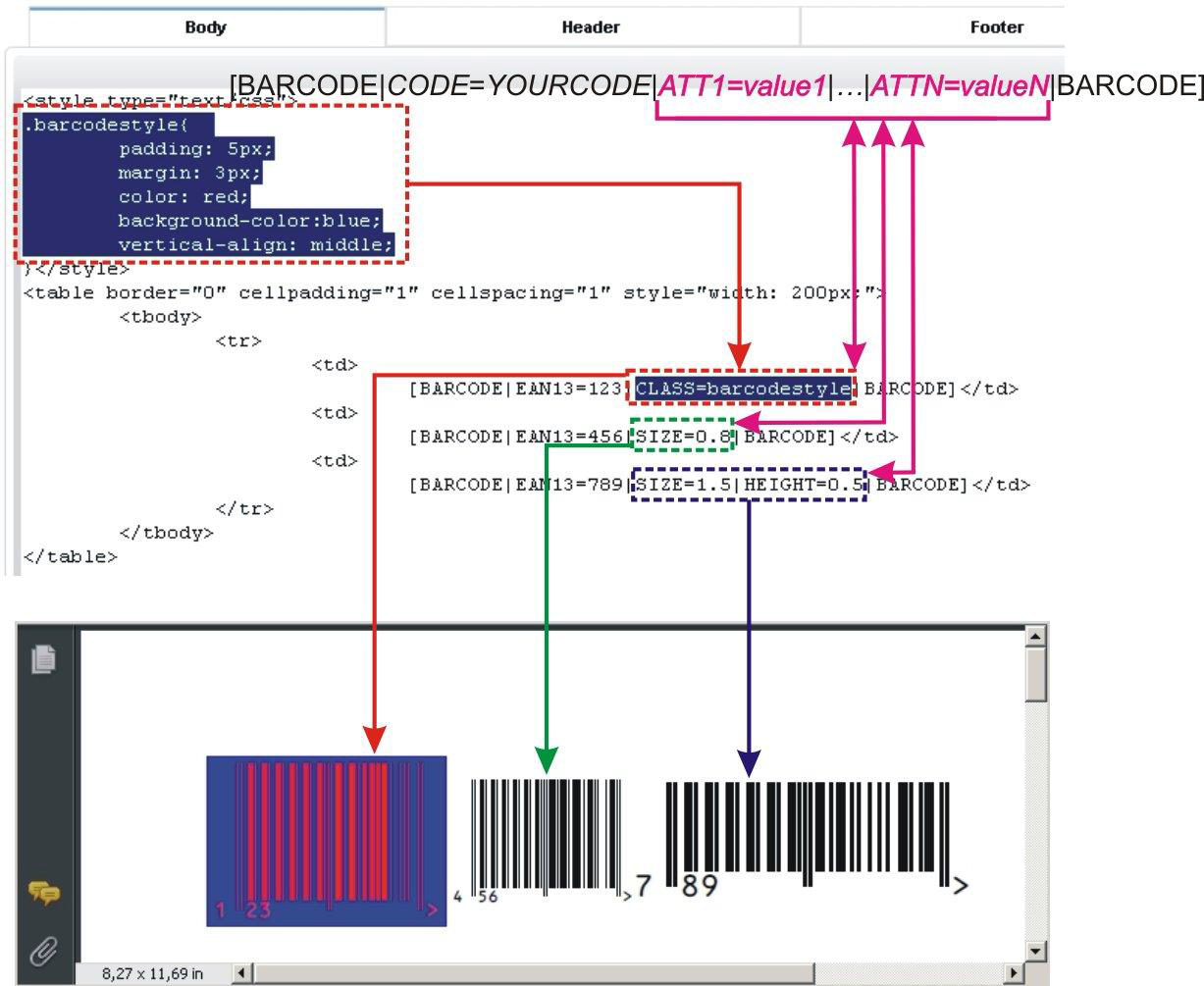
Picture 4.6 Formatting barcodes and QR codes
